

Tell

Full Member
Staff member
Moderator
The Mib2 High / Seat Plus ones have been released for Europe, release "187", June 2020, replaces 184.

Direct download link:

VW Servers


Skoda Servers (same file, VW servers are generally faster)

http://infotainment-cdn.skoda-auto.com/base/maps/HIGH12_P187_EU_202022.zip

For Plus / High users with Mapcare (no Seat UK cars) or for those running retrofit software only.

No good for standard users - you got to wait as per normal a few more weeks.


It's a common release across Seat, Skoda, Audi and VW.... & probably Bentleys for people with the high end Mib2 units which runs Here Maps cartography.

Note all that we say about the use of Macs on these downloads.

(those UK Seat Ateca Cupra owners with the Plus unit have got to get your firmware changed to retrofit unless the interim short term Mapcare can handle it... cue agonising questions :))

I'll add the standard ones when they come out.

Also for MAC users the recommended VAG software to clear the rubbish from a MAC unzip of the download map file is the free utility CleanMyDrive 2 whilst for a PC 7zip. From the October 2019 VAG pdf notes:

ATTENTION

If the map update is performed using the Apple® OS X operating system you may find that
Discover Media does not recognise the map material or displays it incorrectly. This is due to
a lack of compatibility between the “7 zip” program and the OS-X operating system. In
addition, the OS-X operating system has a tendency to create hidden additional files on
external data media. We therefore recommend that OS X users use the “Keka” unzipping
program. We also recommend using the “CleanMyDrive” program to remove any hidden files.


SD card of 32GB formatted to FAT32 should also be used where you can update Mib2 High units. 7zip of PC, drag and drop the contents to the hard disk from the archive, then copy all of the contents to the SD card. Mac OS its Keka for the unzip and CleanMyDrive directed at the SD card. Where there is Mapcare the update button will work.

Retrofits with valid navigation FeC for the period use the SWDL menu of the backend. The four entities NavDB, Eggnog, Truffles and SpeechResVDE should have a "Y" against them. If yes, you are good to go, if not don't else you will need to load up the old maps again that were working on the unit. Navigation will be suspended in 30 seconds, appears to have worked but hasn't since you did an update where the FeC didn't cover it. Pinned post on navigation high unit FeC. Either way during the map update via SWDL back end menu power needs to be kept on to the unit by running the engine or opening the door every 15 minutes during the the 40 minute process. Back end SWDL menu curiosity.

For retrofit units the SWDL menu is obtained by holding the menu till the second menu appears. Important to note if you enable the developers menu via VCDS and try to do the update with an invalid FeC for the map release it will do the 30 second abort to navigation as per the text above. You wont see those four Ys against the entities which means it's not going to work, don't try it - a few of us have been there. The retrofit software actually updates the FeC where the retrofitter claims to offer map updates.

Detailed technical stuff is on this thread:

https://forums.seatcupra.net/index.php?threads/navigation-system-updates.388586/page-109

Those inclined to improve Mib2 High (Plus) cartography can get involved by adding or correcting missing details:

https://mapcreator.here.com/
 

Attachments
  • 20200616_190925.jpg
    20200616_190925.jpg
    2.2 MB · Views: 887
Last edited:
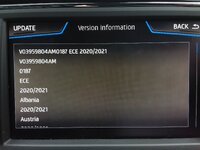
It's the standard Seat map test:

Please follow these steps to check your SEAT Ateca Navigation System: Press the “NAV” Button > Confirm the “Setup” > “Version information” selection on the display.
Check the first text line in "Version information". If the first three digits are 6P0, your system version is the "Navi System - 6P0". If not, your system is the "Navi System Plus".


Then under that you should see your version number. The screen will look a lot like the one I posted above, yours won't say 6P that's a standard, 5F is a mib1 standard. Mine is 0187 as above.

On the thread "what have you done with your car today" (Leon thread) I did see someone had managed to do the latest upgrade based on that Mapcare that you get for the first year. It's on the build code.

Post 8264:


If you present a 32 GB SD card with the files on it unzipped as I said above the map update option should work. You don't have a danger of losing your maps, only threw the backend engineering menu can you achieve this. I muse later in that thread :).

Basically if you can do it, do it.

On my musing there I link to the FeC table posted here which is the key. @Walone had sent me their screen since it was the first time we had seen this on a Plus being done via the front screen sold in the UK. Reading the navigation FeC you can work out how many more of these you can do with the one year complimentary Mapcare. My contribution to retrofitter not selling you something you thought you bought. It's the actual quarter period to when you can update the maps. Putting together my FeC codes as bought with the car, retrofit ones, Walones and a Russian Audi post I slid the periods to the Seat ones :).


You can drive around and after a period of time it will complete or just wait, but you need to keep the power on during the process. It has the ability to restart from where it got to. The backend menu you have to keep the power on all the time by opening the door every 15 minutes or having the engine running.

As you see here the update can take 2 hours... taken from the manual:

Installing navigation data
The installation process takes about 2 hours.
If the Infotainment system is switched off, the
installation process is paused and will auto-
matically resume when switched back on.
● Switch the ignition on.
● Insert the memory card containing the navi-
gation data ››› page 48.
● Press the Infotainment MENU button and
then select Settings .
● In the System settings menu, press the
System information function button.
● Press Update software to import the stored
navigation data.
● Follow the instructions displayed on the
screen.
Once installed, the memory card can be re-
moved. The memory card must be prepared
for removal ››› page 48.
CAUTION
Do not remove the memory card while the
navigation data is being installed. The memo-
ry card may be irreparably damaged!
Note
● The navigation memory card may not be
used as memory storage for other files. The

Etc.

But as said if on a commute, just do the commute and it will complete eventually. Backend menu is 40 minutes but not for novices :).

I'd check your navigation FeC using that table as well since Ateca Cupra 2018 feels a way back.
 
Last edited:
After reading everything decided not to even attempt to update sat nav map, will stick to Waze with my TomTom as a back up as it has lifetime map updates and live traffic. Don’t want to break anything ?
 
Ian that will be outside of your one year free Mapcare that came with the car since its a Ateca Cupra, UK they are sold only in high form. You can check your navigation FeC without downloading the map to try:


I cracked how it worked not that you can change them yourself. You need a retrofitter or buy a Mapcare upgrade that isn't sold in the UK. If you had downloaded the maps and presented it would not do anything... so you are protected least through the normal method.

Ateca Cupra's with mib2 high have the free one year map update possible. People have been doing that across the brand but what has also come to light is unlimited Mapcare sold in Europe on Cupra's in some countries. FeC is set high. One such is this.. If you track back up. They have unlimited Mapcare on their Cupra


Just it's deemed that Brits can't have it... a trip to a decent retrofitter will fix that. Bizarreness we have.

Whole new ball game with mib3, we don't know the rules yet.
 
Hi.
I am thinking in updating my maps, if possible but I'm still not sure if it is safe how to do it! I have the original Seat SD card and I have already made an update a couple of years ago, but I don't remember if I only updated MiB2 or if I updated the maps themselves!

The infotainment says numbers like these:
Installed SW Train:MST2_EU_SE_ZR_P0515T
Installed SW MU version: 515
Current Version: MST2_EU_SE_ZR_P0515T (0515)
Update: MST2_EU_SE_ZR_P0515T (0515-1)
Update: MST2_EU_SE_ZR_P0514T (0514-2)

HMI Software: H29.344.66_STD2Nav_EU
Model: GuideModel_29.344.12
Software Base: H29.344.66-201906171929
CGRun Number: H29.344.66-201906171931_STD2Nav_EU_201906172015

Part Number: 5F0035846C
Hardware Version: 5F0035846C
Software Version: H29.344.66_STD2Nav_EU

Can I simply copy the folder `maps` into the root of the sd card and get away with it?
 
No you need the "workaround". Something new, something old as they say on wedding dresses or something. Read from workaround.


You need the overall.nds file you existing card. That is copied as directed onto the map update. It then thinks you haven't updated the map, but you have. Some bright spark back in 2017 cracked it here and its used across all Seat boards. Fear not if you do loose the original overall.nds file the solution is given on the resource.

The main thing for you if you dont have a Seat 32gb card you have to pick one of the zones. Reason the details within the maps out grew the original design spec. If you want all of Europe then you can buy a Vag 32gb card of ebay say, repeat the process.

So its nearly "simply" but you must do that copy steps:

>>
Workaround

Using a PC or a MAC ?

PC: 7 Zip is the preferred VW tool, other unzip tool including those built into Windows, can cause difficulties.

7 zip can be obtained from


MAC: VW instructions

"ATTENTION

If the map update is performed using the Apple® OS X operating system you may find that
Discover Media does not recognise the map material or displays it incorrectly. This is due to
a lack of compatibility between the “7 zip” program and the OS-X operating system. In
addition, the OS-X operating system has a tendency to create hidden additional files on
external data media. We therefore recommend that OS X users use the “Keka” unzipping
program. We also recommend using the “CleanMyDrive” program to remove any hidden files."

If a MAC is used CleanMyDrive is run against the SD card after the maps are copied across to the SD card.

Having identified which unzipping tool is required and special Mac SD card cleaning required... free to proceed.

Steps:

Download the latest standard MIB2 maps
on the infotainment go to settings, safely remove, sd1 card
remove sd1 card from glove box slot
long press on the on / off to reboot it a couple of times
insert sd card in to computer
copy and paste all contents to a directory on your computer
Delete the contents of the card rather than re-format the SD card. If reformatted keep the card as fat32, 4096 (don't forget to push the card lock mechanism to off) (ditto in a MAC or delete all from the SD card). There are reported issue with reformatting rather then deleting the contents. Cards have be wrecked in a reformat.
Copy the new downloaded map version to the SD card (after unzipping it)
Replace /maps/EEC/EEC_WLD/OVERALL.NDS on the SD CARD with the one from the original SD card
eject the sd card (on a MAC run CleanMyDrive on the SD card - then eject)
Inserted the card into the card 1 slot in glove box whilst infotainment is off
power on and go to navigation


The unit should then boot up into navigation. Note it does take a little longer first time round. If it refuses to boot up, press the volume button forcing a reboot, hold down until the unit reboots. If this fails it will be issues on the overall.nds file / copy issues. Revisit the process. Failing this restore the back up.

You will also need to pick up any POIs that you show on the screen since these will be dropped after a map update. Petrol stations, parking location etc.

Do not format the card in anything other than Fat32. The unit runs QNX so will not correctly see the SD card if it is not in Fat32 / cluster size gets tinkered with in a reformat. The CID is not deleted in a format that is outside of the area that can be addressed but reformatting has been known to corrupt the card.

<<
 
Last edited:
  • Like
Reactions: HelloPitty
BTW

We are onto the November 2025 release of mib2 standard maps that you would need. Its in the link I gave but here it is again:

 
  • Like
Reactions: HelloPitty
@Tell you seem to be a very patient guy, thank you.
I have severall files of that (overall.nds). The only one needed is the one inside /maps/ECC/ECC_WLD/overall.nds or should I also save the other ones and overwrite them?

Tis was the map I downloaded!
1767692154436.png
 
Last edited:
Indeed just use that single file from your old map SD card. Thats copied across.

Use the link in post 9 above as your source. Vag maps within type across brand are all interchangeable. Your type is mib2 standard. The Seat website I doubt has the November 2025 release. Its just how things are. Skoda servers currently have more up-to-date files at the minute unless they have updated them from when I last checked. The unit reflect you got a Seat and the files delivered the Seat part code. The files have the part code in for each Vag brand not that it does anything. Just displays the part code of the map.

Take a copy of your existing card just in case something goes wrong so you can get back to a working system. It wont go wrong if carefull copied, just that one file.

I keep that file on my system in a directory as /maps/ECC/ECC_WLD/overall.nds so I know exactly what to pick up. Copy and paste. How people loose the original by not taking a copy, or doing a copy but not paste on the same drive and that turns into a move.

Process which is the safest is take that copy, put it in a directory as above. Take the new files, unzip put on the SD card, then copy and paste the old file to the SD card. The date on the old file is kept so you know you have done the process. The other dates are newer.

In putting the card in the unit there is a slight delay of a few seconds as it recreates the integrity of the map update. Creates a FeC.

If you do, do VCDS / Obdeleven error scans you will notice after this it sets up an error code which you cant clear. Don't worry everybody who has used this process as the error code, it means nothing (you have two navigation FeC, original and new). Other than that the unit has to be hacked for map updates. As I said in the text for the resource there were a small number of 2019 cars that came with unlimited Mapcare after Seat gave up trying to sell it. Mapcare was never sold in the UK. How to detect whether you have one of those vehicles is in the resource other than that it's the workaround or a firmware hack to change the FeC / SWaP code. The workaround was named by a member of the board so the name workaround stuck for the step process.
 
  • Like
Reactions: HelloPitty
Ok, I tried once and it didn't work. I copied all overall.nds files from all folders. I'm now restoring an image I created before. I mean, before I started, I created an image of the SD card, so I have an .img file. I'm using Debian. No Windows or Mac.

This time, I'll copy only the mentioned file instead of them all. I'll download the file from Skoda servers also, this time! Will update here after I try again!
 
We like good news. That's it.

You just then have to pick up any built in or user POIs like gas stations, hotels etc if you had any selected previously. Few clicks to do that.

You mean to add to the maps the POIs I eventually had in the past?
